Practical guide
How to choose a travel eSIM for hotspot use
Confirm that the exact plan permits tethering, set the travel eSIM as the data line, and size data with your own usage test.
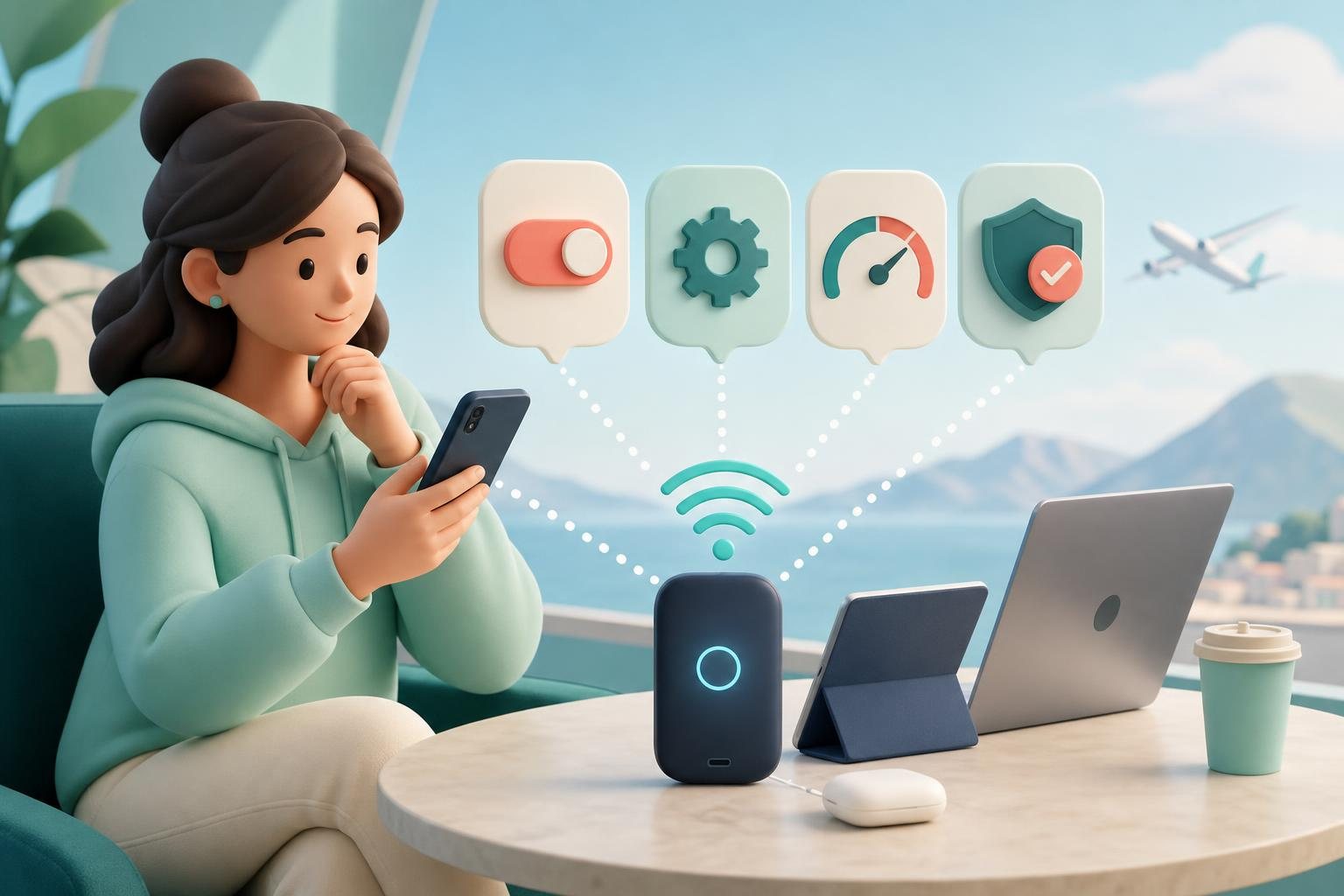
A travel eSIM for hotspot use can connect a laptop, tablet, or second phone while you are away. The first question is not whether your phone supports eSIM; it is whether the exact plan you intend to buy explicitly permits tethering. A working hotspot switch on the phone does not, by itself, confirm the plan’s permission.
Apple and Google both state that carriers can restrict tethering or charge additional fees. Apple also says that Personal Hotspot is not available with every carrier. Apple Support: Share your internet connection Google Pixel Help: tethering and hotspot
What to confirm before paying
Treat the purchase as a check of one specific plan, not as a generic eSIM decision. If the product page and its terms do not answer whether tethering is allowed, do not assume that it is. Ask the seller for confirmation before paying.
Use this checklist while comparing plans:
| Item to check on the plan page or terms | What should be clear before purchase |
|---|---|
| Tethering permission | Whether the exact plan explicitly permits hotspot, tethering, or Personal Hotspot. |
| Stated data entitlement | The amount of data or the usage rule stated for the plan you selected. |
| Stated validity | When the package is described as ending and any activation timing stated by the seller. |
| Listed destinations | Whether every country or territory on your route appears in that plan’s information. |
| Usage tracking | How the provider says you can see remaining data or recorded usage. |
An eSIM is a SIM format, not a tethering promise. Google specifically advises checking with the carrier because some carriers limit tethering or charge extra for it. Google Pixel Help: tethering and hotspot
Do not choose from a 5G badge alone, either. Apple says available cellular options can depend on iPhone model, carrier, and region. It also explains that 5G Auto can switch an iPhone to LTE when 5G speeds do not provide a noticeable benefit. Apple Support: cellular data settings
A practical pre-trip test
Follow the seller’s own installation and activation instructions for the plan. Once the phone has a cellular connection, do a short test before departure: open a webpage on the phone, turn on the hotspot, connect one device you expect to use, and check that it can reach the internet through the phone.
That test does not establish a plan’s commercial terms. It does, however, give you time to spot a phone or connected-device setting problem before you depend on the connection.
If the travel eSIM needs data roaming while abroad, rely on the provider’s directions for that plan. On iPhone, Data Roaming permits internet access over a cellular network when you are outside your carrier’s network area, and Apple directs users to their carrier for international-plan and service questions. Apple Support: cellular data settings
iPhone: select the travel eSIM for cellular data
On an iPhone using two SIMs, Personal Hotspot uses the line selected for cellular data. Adding the travel eSIM is therefore not enough: before you share the connection, select that eSIM as the cellular-data line in iPhone settings. Apple Support: Share your internet connection
Then open Settings → Personal Hotspot and follow the onscreen setup. Apple documents three ways for another device to connect to an iPhone Personal Hotspot: Wi‑Fi, Bluetooth, or a cable. You can set a password for the Wi‑Fi hotspot. Apple Support: Share your internet connection
If cellular data is on but you cannot find the option to set up Personal Hotspot, Apple says to contact the carrier about adding Personal Hotspot to the plan. That is a reason to verify tethering entitlement with the plan provider, rather than assuming that the eSIM itself is at fault. Apple Support: Share your internet connection
Apple states that an iPhone uses cellular data for the internet connection when it shares Personal Hotspot. So, when the travel eSIM is the selected data line, the connected device is using that cellular connection; how usage is counted remains subject to the terms of the plan you bought. Apple Support: Share your internet connection
Pixel and Android: use a documented connection method
Google says that most Android phones can share mobile data through Wi‑Fi, Bluetooth, or USB. On a Pixel, the documented Wi‑Fi hotspot path is Settings → Network & internet → Hotspot & tethering → Wi‑Fi hotspot. There you can turn the hotspot on and view or change settings such as its name and password. Google Pixel Help: tethering and hotspot
For Wi‑Fi tethering on a Pixel, Google says Data Saver must be turned off. On the device you want to connect, open its Wi‑Fi list, choose the phone’s hotspot name, and enter the hotspot password. Google Pixel Help: tethering and hotspot
For one compatible computer, USB tethering is another documented option: connect the phone by USB, then turn on USB tethering under Hotspot & tethering. Google states that Mac computers cannot tether with Android by USB, so choose a compatible option, such as Wi‑Fi, for a Mac. Google Pixel Help: tethering and hotspot
Google recommends plugging devices in while tethering and turning off connections when finished. Pixel also offers a setting that turns the hotspot off automatically when no devices are connected. Google Pixel Help: tethering and hotspot
Size the data plan from your own measurement
There is no universal daily data figure that reliably fits hotspot use. Your result depends on what you actually do with the connected setup. A personal measurement is more useful than a generic estimate.
Try this before travel:
- On a typical work or preparation day, connect your laptop through a hotspot or another metered mobile connection.
- Record the data used during a period similar to the one you expect while travelling.
- Multiply that measured use by the number of days when you genuinely expect to need the hotspot.
- Add a reserve you are comfortable with for unusual workdays or periods without Wi‑Fi.
- Compare the result with what the selected plan explicitly states and with its tethering permission.
For example, if your own test shows 0.8 GB for one workday and you expect to tether for six days, the base calculation is 0.8 × 6 = 4.8 GB. That is only a calculation example, not a prediction for every traveler.
On iPhone, you can review cellular usage by app in Settings → Cellular and reset the usage statistics before your test. Apple says that, for the most accurate current-period cellular-data figure, you should contact your carrier. Apple Support: cellular data settings
On Pixel, total usage appears in Settings → Network & internet → SIMs, and App data usage provides graphs and per-app details. Google cautions that the phone’s measurement can differ from the carrier’s measurement and plan limits. Pixel also lets you set a data warning or a data limit in these settings. Google Pixel Help: manage mobile data
Reduce the chance of surprise usage
Before sharing data, review which phone apps can use cellular data. On iPhone, you can turn off cellular data for individual apps and services, causing those items to use Wi‑Fi only. Apple says Low Data Mode pauses automatic updates and background tasks when the iPhone is not connected to Wi‑Fi. Apple Support: cellular data settings
On Pixel, Google suggests turning off auto-sync to use less data and provides controls for app background-data use. Google Pixel Help: manage mobile data
For an important task, connect only the device you need and confirm that it is actually using the phone hotspot. Avoid scheduling large downloads through the hotspot unless you included them in your own test and in your plan assessment.
What to expect from performance
A network label alone does not promise identical hotspot performance everywhere. On iPhone, Maximize Compatibility may help a device connect, but Apple warns that enabling it can reduce performance for devices connected to the hotspot. Apple Support: Share your internet connection
If the hotspot works but is not meeting your needs, test the simplest arrangement first: one connected device, no unnecessary activity, and no Maximize Compatibility unless you need it for compatibility. If the hotspot option is missing or cannot be enabled, go back to the plan terms and ask the provider to confirm that tethering is permitted.
FAQ
Can every travel eSIM be used as a hotspot?
No. Google says some mobile carriers limit tethering or charge extra for it. Confirm permission for the exact plan before buying. Google Pixel Help: tethering and hotspot
How do I know which SIM an iPhone hotspot uses?
With Dual SIM, Personal Hotspot uses the line selected for cellular data. Apple Support: Share your internet connection
Why does phone usage differ from the provider’s record?
Both Apple and Google advise checking with the carrier because the device’s counter can differ from the carrier’s measurement and plan limits. Apple Support: cellular data settings Google Pixel Help: manage mobile data
Sources
References used for this guide
Plan and device conditions can vary. Check the exact plan page and device-maker documentation before purchase.
Keep reading
Related guides
How Much Data Do I Need for Travel? Calculate It From Your Actual Usage
A practical way to estimate travel data: measure app usage, multiply it by trip length, add a deliberate reserve, and account for maps, messaging, video, remote work, and hotspot use.
How to choose a travel eSIM: 7 checks before you pay
A practical travel eSIM checklist covering phone compatibility, coverage, data, validity, activation, calls and the settings to review before departure.