Practical guide
Should data roaming be on for a travel eSIM? Check each line’s settings
Learn how to decide whether to enable data roaming for a travel eSIM, select it for mobile data, and check your primary SIM separately on iPhone or Pixel.
Direct answer
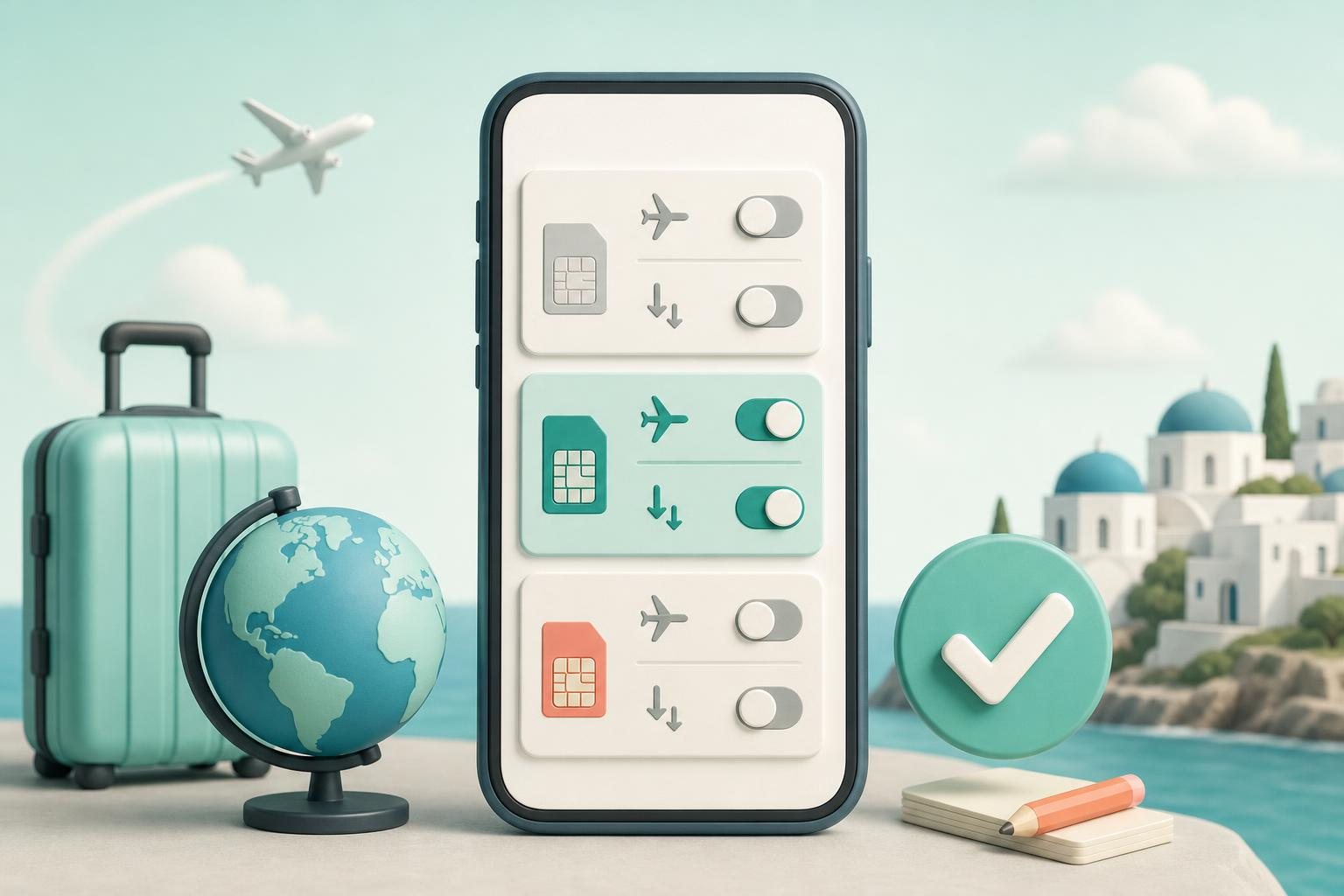
Should data roaming be on for a travel eSIM? There is no universal setting—follow the instructions for the specific package you have. Apple tells users to turn on Data Roaming and other settings suggested by their network provider for the line they are changing. Apple Support That matters because your phone presents one familiar roaming control, while the requirements of individual eSIM packages can differ.
There is a documented example where a travel eSIM requires roaming: Nomad’s current setup instructions tell users to enable Data Roaming on the Nomad eSIM and select that eSIM for cellular data. Nomad eSIM Help Center That does not establish that every travel eSIM needs the switch on. It shows why you should not substitute a general internet rule for the instructions supplied with your own package.
The key troubleshooting principle is to check each line separately. On iPhone, Apple directs you to select the number you want to modify before opening its mobile-data options. Apple Support On a multi-SIM Pixel, Google says you change each SIM’s mobile-network information through separate tabs. Google Pixel Help
What the roaming control does
Data roaming lets a device send data through other operators’ networks outside the area covered by its operator’s network. Apple and Google describe the setting in those terms. Apple Support Google Pixel Help Turning it on does not select your data plan, choose the SIM used for data, or alter the terms of your primary carrier.
Keep two separate controls in mind:
- The cellular-data line is the SIM or eSIM your phone should use for mobile internet. An iPhone uses one cellular-data network at a time. Apple Support
- Data roaming for that line permits that line to use data on another network when its network provider or package instructions require it. Apple Support
If you have a primary SIM and a travel eSIM, do not assume that a setting for one applies to the other. You can inspect both lines separately, select the travel eSIM for data, and set roaming on each line according to that line’s provider terms. Apple and Google both document per-line cellular controls for Dual SIM use. Apple Support Google Pixel Help
A careful setup sequence before travel
Do not begin by changing the roaming toggle. First, find the confirmation email, app instructions, or help page for the travel eSIM and see what it says about mobile data, roaming, APN details, or network selection. Apple tells users to follow settings suggested by the network provider, while Nomad specifically directs its customers to make its eSIM the cellular-data line and enable roaming for it. Apple Support Nomad eSIM Help Center
Then check these four items:
- The travel eSIM is enabled. On iPhone, settings for a line are available after selecting the relevant number under Cellular or Mobile Data. Apple Support
- The travel eSIM is selected for cellular data. On iPhone, open Cellular Data and choose the number that should carry mobile data. Apple Support
- Roaming on the travel eSIM matches the package instructions. Do not turn it on or off merely “to be safe”: Apple ties the control to provider guidance, and Nomad’s documented instructions require roaming for its own eSIM line. Apple Support Nomad eSIM Help Center
- The primary SIM is reviewed separately. Enabling roaming for the travel eSIM does not automatically enable it for another line, because the controls are changed for the number or SIM you select. Apple Support Google Pixel Help
iPhone: select the data line, then its roaming setting
On an iPhone with two lines, open Settings → Cellular or Mobile Data. Apple documents that this area lets you choose a number for cellular data and manage settings for each plan independently. Apple Support
- Tap Cellular Data and select the travel eSIM as the data line. Apple states that one number at a time can use cellular data. Apple Support
- Return to the list of lines and tap the travel eSIM.
- Open Cellular Data Options or Mobile Data Options.
- Set Data Roaming only as your package instructions specify. For Dual SIM, Apple describes this path: select the number, open its data options, and enable Data Roaming when needed. Apple Support
Clear plan labels can make later checks easier, such as “Primary” and “Travel data.” Apple allows cellular-plan labels to be changed, and those labels are used when selecting lines for calls, messages, and data. Apple Support
Do not treat Allow Cellular Data Switching as a reliable fallback
Apple describes Allow Cellular Data Switching as a feature that can let an iPhone use cellular data from both plans according to coverage and availability. Apple Support However, Apple’s Dual SIM documentation also states that automatic cellular-data switching does not work while Data Roaming is in use. Apple Support
As a result, if the travel eSIM is using data roaming, do not rely on this setting as a predictable backup connection or as a way to protect the primary line. Select the data line deliberately and review the primary SIM’s terms separately. Apple notes that roaming charges may apply to a line with Data Roaming enabled when you are outside the country or region covered by that carrier’s network. Apple Support
Google Pixel: review each SIM’s settings
On a Pixel, open Settings → Network & internet → SIMs. Google notes that the exact options available can vary by phone and Android version. Google Pixel Help
- Confirm that the travel eSIM is enabled.
- Under Your primary SIMs, choose it for Mobile data. Google says that only one SIM can be the default data SIM. Google Pixel Help
- Open the travel eSIM’s own settings and set Roaming as required by the package instructions. Google defines this option as allowing data over other operators’ networks. Google Pixel Help
- Open the primary SIM’s tab and review its Mobile data and Roaming settings separately. Google documents separate tabs for the mobile-network settings of multiple SIMs. Google Pixel Help
Data behaviour during a call depends on the Pixel model. For Pixel 8, Pixel 8 Pro, and earlier models, Google says that all data goes through the SIM making the call; the Data during calls control is available when you need data on a SIM that is not normally used for it. Google Pixel Help For Pixel 8a and later, Google documents a different dual-SIM calling setup: using both SIMs for calls requires mobile data enabled on both SIMs, automatic data switching enabled for the second SIM, and carrier support for Wi‑Fi Calling on that second SIM. Google Pixel Help
If mobile data does not work
Check one setting at a time rather than changing everything together:
- Confirm that Mobile data is on and that the intended SIM is in use; Google lists those checks for Pixel mobile-data problems. Google Pixel Help
- Confirm that the travel eSIM is assigned to mobile-data use; Google says a phone with more than one SIM must have mobile-data usage assigned to one SIM. Google Pixel Help
- Compare the travel eSIM’s roaming setting with the package instructions; Apple also advises checking Data Roaming for the selected line when troubleshooting international roaming. Apple Support
- On iPhone, briefly turn Airplane Mode on, turn it off again, and allow the phone to select a network automatically—an Apple-recommended step for roaming issues. Apple Support
Do not change APN settings, delete the eSIM profile, or reset network settings unless the provider for your specific package instructs you to do so. Those are service-specific troubleshooting steps, not universal consequences of enabling roaming.
Monitor data use without relying on one counter
Your phone’s data counter is useful for monitoring, but it should not be your only record. Google warns that the amount shown in phone settings can differ from a carrier’s measurement and recommends checking the carrier’s measurement and plan limits. Google Pixel Help
On Pixel, you can view total and app-level mobile-data use through Settings → Network & internet → SIMs → App data usage, and you can set a data warning or limit. Google Pixel Help If your eSIM provider offers an account page or app, compare its remaining allowance and package status with the phone’s counter.
FAQ
Does data roaming always need to be on?
No. Use the setting required by your package documentation. Apple points users to settings suggested by their network provider, while individual providers may explicitly require roaming for their own eSIMs. Apple Support Nomad eSIM Help Center
Can roaming be on for the travel eSIM and off for my primary SIM?
Yes, if that combination matches the terms of both lines. iPhone and Pixel present the controls for the selected line or SIM rather than as one universal setting for every line. Apple Support Google Pixel Help
Is turning on roaming enough to make a travel eSIM work?
No. The travel eSIM also needs to be enabled and selected for cellular data. Apple allows one cellular-data line at a time, and Google says only one SIM can be the default data SIM. Apple Support Google Pixel Help
Does enabling roaming for the travel eSIM change my primary line’s settings?
No. The control applies to the line you opened. However, your primary SIM’s services and possible charges follow its own settings and carrier terms, so review that line separately. Apple Support Apple Support
Sources
References used for this guide
Plan and device conditions can vary. Check the exact plan page and device-maker documentation before purchase.
- Apple Support — About mobile data roaming options for iPhone and iPad
- Apple Support — Using Dual SIM with an eSIM
- Apple Support — Using Dual SIM with two nano-SIM cards
- Apple Support — Use Dual SIM on iPhone
- Google Pixel Help — Connect to mobile networks on a Pixel phone
- Google Pixel Help — How to use dual SIMs on your Google Pixel phone
- Google Pixel Help — Reduce and manage mobile data usage
- Nomad eSIM Help Center — Enable Data Roaming for Optimal Setup
Keep reading
Related guides
How to use travel eSIM with primary SIM: a dual-SIM travel setup
Set a travel eSIM for mobile data while keeping your primary SIM available for your usual number, calls, and SMS.
Travel eSIM vs international roaming: choose by your trip, not hype
Compare a travel eSIM with international roaming by itinerary, phone compatibility, home-number needs, data controls, and the exact terms of each plan.